> ## Documentation Index
> Fetch the complete documentation index at: https://private-7c7dfe99-detect-table-modification.mintlify.site/llms.txt
> Use this file to discover all available pages before exploring further.
# Import Langfuse Cloud trace data
> How to load LLM trace data exported from Langfuse Cloud into ClickHouse Cloud using ClickPipes.
This guide walks you through loading LLM trace data from [Langfuse Cloud](https://cloud.langfuse.com/) into ClickHouse Cloud for real-time analytics.
Export from Langfuse Cloud
Follow [this guide](https://langfuse.com/docs/api-and-data-platform/features/export-to-blob-storage) to configure a Blob Storage integration in Langfuse Cloud for scheduled exports. You can schedule exports of your trace data to object storage as often as every `20 minutes` or on an `hourly`, `daily`, or `weekly` schedule. By default, each export contains your `observations` (enriched with trace attributes) and `scores`.
Exported file layout
The Blob Storage integration in Langfuse Cloud writes data to the target bucket or storage container using the following directory structure:
```text theme={null}
{prefix}{project-id}/
├── observations_v2/ # observations enriched with trace attributes
├── scores/ # scores
└── manifests/ # one JSON file per completed run with export metadata
```
Import into ClickHouse Cloud
Once a Blob Storage integration is configured in Langfuse Cloud, trace data will be exported to the target bucket or storage container on a schedule. To import that data into ClickHouse Cloud, you can use [ClickPipes](/integrations/clickpipes) and its managed object storage connectors:
| Data source | Details |
| ----------------------------------------------------------------------------------------------------------------------------------------------------------------------------------------------------------------------------------------------------------------------------------------------------------------------------------------------------------------------------------------------------------------------------------------------------------------------------------------------------------------------------------------------------------------------------------------------------------------------------------------------------------------------------------------------------------------------------------------------------------------------------------------------------------------------------------------------------------------------------------------------------------------------------------------------------------------------------------------------------------------------------------------------------------------------------------------------------------------------------------------------------------------------------------------------------------------------------------------------------------------------------------------------------------------------------------------------------------------------------------------------------------------------------------------------------------------------------------------------------------------------------------------------------------------------------------------------------------------------------------------------------------------------------------------------------------------------------------------------------------------------------------------------------------------------------------------------------------------------------------------------------------------------------------------------------------------------- | -------------------------------------------------------------------------------------------------------- |
|  Amazon S3
and S3-compatible object stores | Integrate using [S3 ClickPipes](/integrations/clickpipes/object-storage/amazon-s3/overview). |
|  **Google Cloud Storage** | Integrate using [GCS ClickPipes](/integrations/clickpipes/object-storage/google-cloud-storage/overview). |
|
**Google Cloud Storage** | Integrate using [GCS ClickPipes](/integrations/clickpipes/object-storage/google-cloud-storage/overview). |
|  **Azure Blob Storage** | Integrate using [ABS ClickPipes](/integrations/clickpipes/object-storage/azure-blob-storage/overview). |
Create a ClickPipe
This example uses the S3 ClickPipe to import data from an S3 bucket receiving scheduled exports from Langfuse Cloud, and can be used as a blueprint for all object storage export targets. For data source-specific guidance, see the [ClickPipes documentation](/integrations/clickpipes).
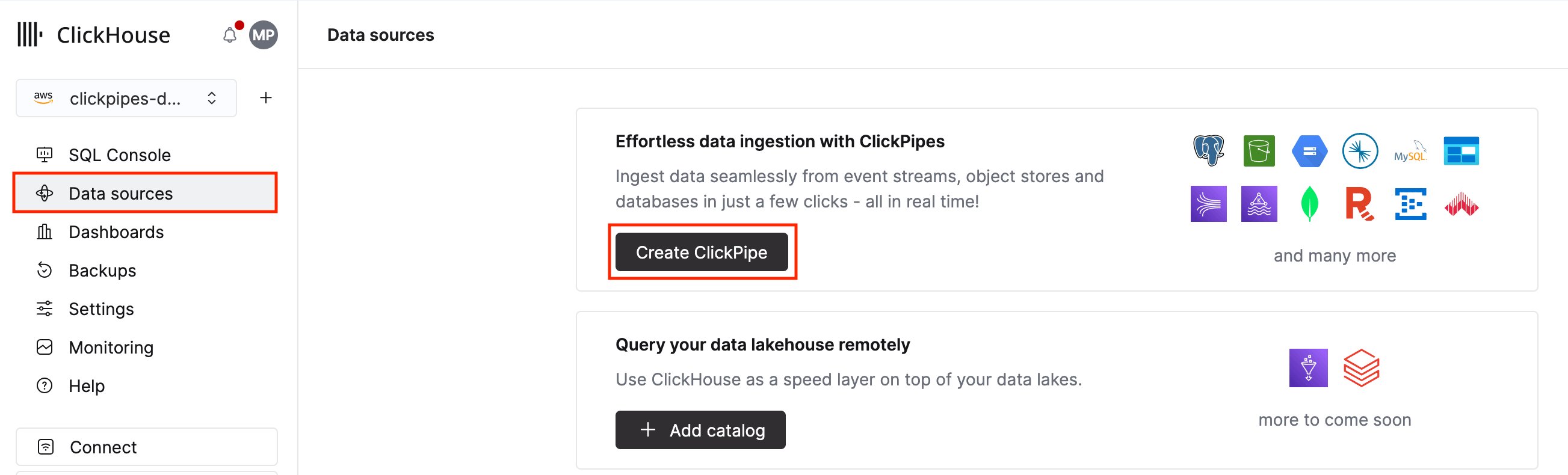
**1.** In ClickHouse Cloud, select **Data sources** in the main navigation menu and click **Create ClickPipe**.
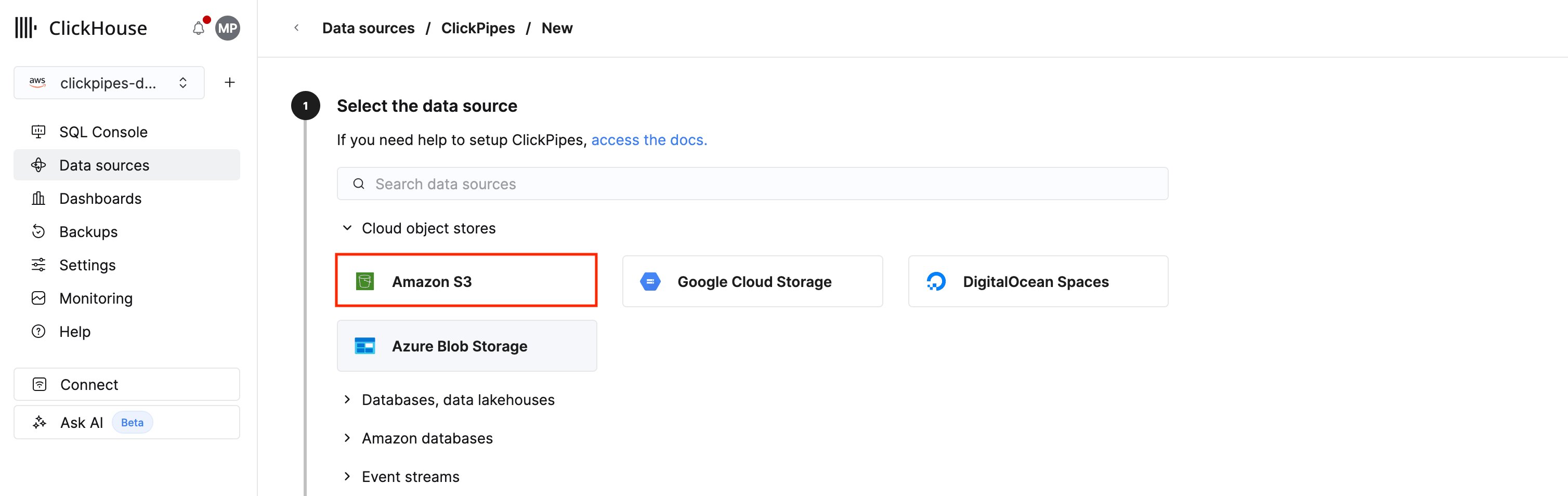
 **2.** Click the **Amazon S3** tile. You can also use this tile to connect to other S3-compatible services not listed in the ClickPipes UI.
 **1.** Fill in the details ClickPipes needs to connect to and authenticate with the bucket receiving your Langfuse Cloud exports.
* **Authentication method**: the S3 ClickPipe supports [IAM credentials](/integrations/clickpipes/object-storage/amazon-s3/overview#iam-credentials) (`Credentials`) and [IAM role-based authentication](/integrations/clickpipes/object-storage/amazon-s3/overview#iam-role) (`IAM role`). ClickPipes only needs read access to the bucket. See the [reference documentation](/integrations/clickpipes/object-storage/amazon-s3/overview#access-control) for guidance on authentication and permissions.
* **S3 file path**: point the ClickPipe at a sub-directory and use a `*` wildcard to match every exported file. You **must** create one ClickPipe per sub-directory, given that the exported files under each sub-directory have different schemas.
| Sub-directory | File path |
| ------------------ | --------------------------------------------------------------------------------------------- |
| `observations_v2/` | `https://{bucket-name}.s3.{region-code}.amazonaws.com/{prefix}{project-id}/observations_v2/*` |
| `scores/` | `https://{bucket-name}.s3.{region-code}.amazonaws.com/{prefix}{project-id}/scores/*` |
See the [reference documentation](/integrations/clickpipes/object-storage/amazon-s3/overview#file-pattern-matching) for guidance on supported patterns, including how to match files across nested prefixes.
**2.** Select **Continuous ingestion** so that new files are automatically ingested as Langfuse writes them to the target bucket.
**1.** Fill in the details ClickPipes needs to connect to and authenticate with the bucket receiving your Langfuse Cloud exports.
* **Authentication method**: the S3 ClickPipe supports [IAM credentials](/integrations/clickpipes/object-storage/amazon-s3/overview#iam-credentials) (`Credentials`) and [IAM role-based authentication](/integrations/clickpipes/object-storage/amazon-s3/overview#iam-role) (`IAM role`). ClickPipes only needs read access to the bucket. See the [reference documentation](/integrations/clickpipes/object-storage/amazon-s3/overview#access-control) for guidance on authentication and permissions.
* **S3 file path**: point the ClickPipe at a sub-directory and use a `*` wildcard to match every exported file. You **must** create one ClickPipe per sub-directory, given that the exported files under each sub-directory have different schemas.
| Sub-directory | File path |
| ------------------ | --------------------------------------------------------------------------------------------- |
| `observations_v2/` | `https://{bucket-name}.s3.{region-code}.amazonaws.com/{prefix}{project-id}/observations_v2/*` |
| `scores/` | `https://{bucket-name}.s3.{region-code}.amazonaws.com/{prefix}{project-id}/scores/*` |
See the [reference documentation](/integrations/clickpipes/object-storage/amazon-s3/overview#file-pattern-matching) for guidance on supported patterns, including how to match files across nested prefixes.
**2.** Select **Continuous ingestion** so that new files are automatically ingested as Langfuse writes them to the target bucket.
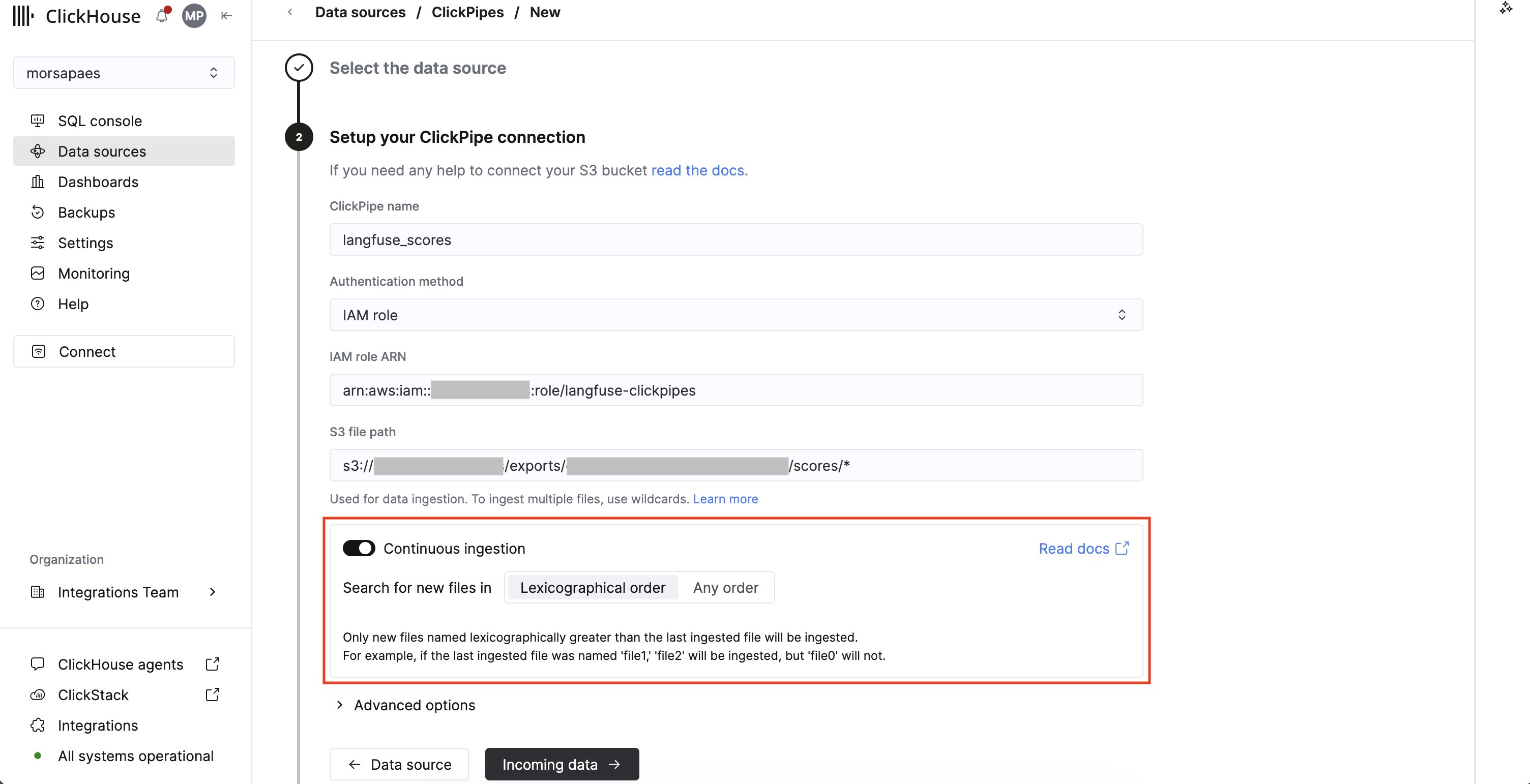 **3.** Click **Incoming data**. ClickPipes will fetch metadata from your bucket and infer the schema for the target table in the next step.
**1.** ClickPipes will connect to your bucket and list the files in the specified path, inferring the file format. In this example, we used the default export file format in Langfuse Cloud (Parquet).
**3.** Click **Incoming data**. ClickPipes will fetch metadata from your bucket and infer the schema for the target table in the next step.
**1.** ClickPipes will connect to your bucket and list the files in the specified path, inferring the file format. In this example, we used the default export file format in Langfuse Cloud (Parquet).
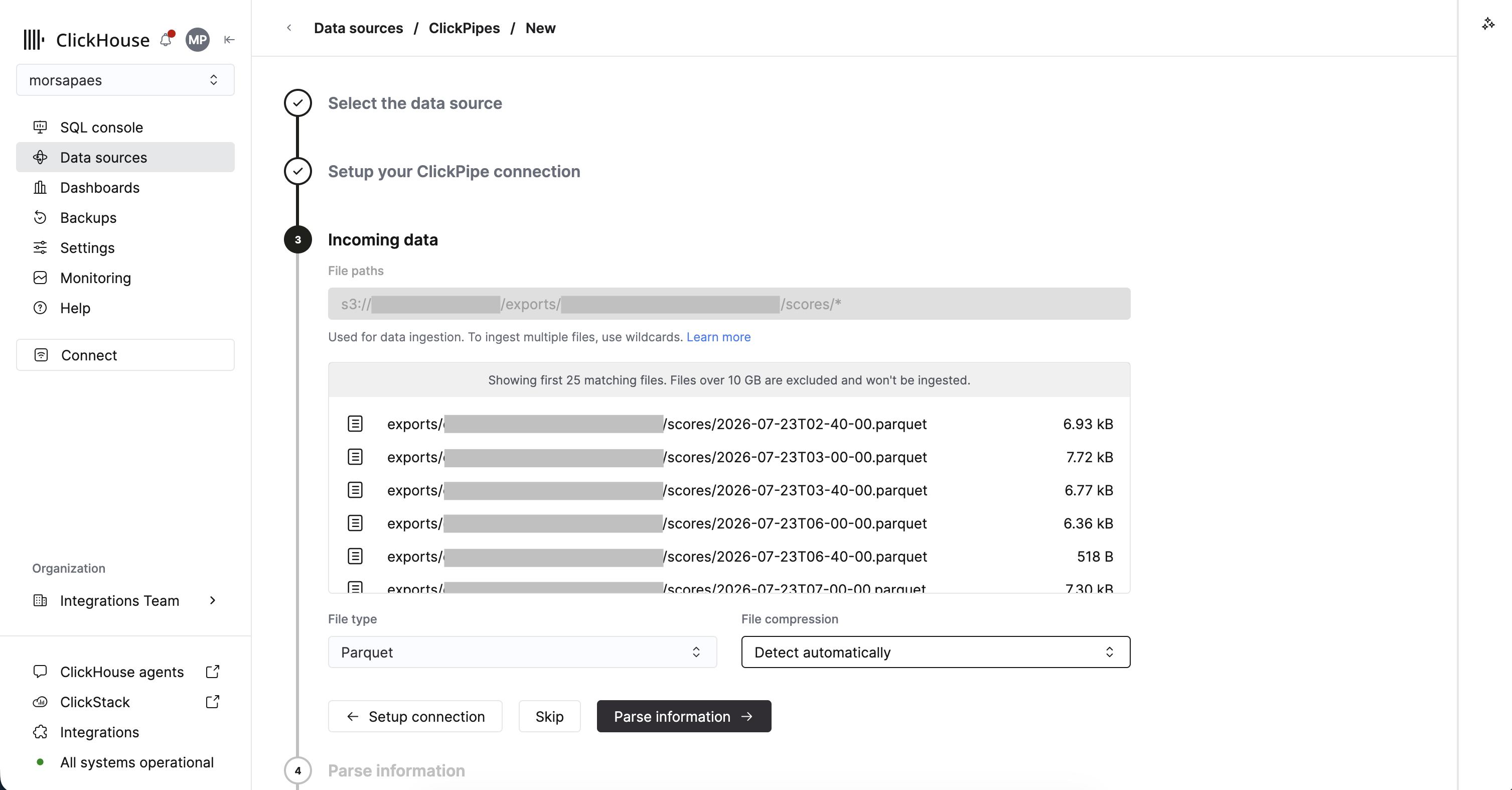 **2.** Click **Parse information**. ClickPipes will use a sample file to infer the schema of the exported data and automatically map the source fields to a ClickHouse target table.
**1.** In this step, you can review the inferred schema and customize the configuration of the target table, including adjusting the data type mapping, defining the [sorting key](/best-practices/choosing-a-primary-key), and choosing the [table engine](/reference/engines/table-engines).
**2.** Click **Parse information**. ClickPipes will use a sample file to infer the schema of the exported data and automatically map the source fields to a ClickHouse target table.
**1.** In this step, you can review the inferred schema and customize the configuration of the target table, including adjusting the data type mapping, defining the [sorting key](/best-practices/choosing-a-primary-key), and choosing the [table engine](/reference/engines/table-engines).
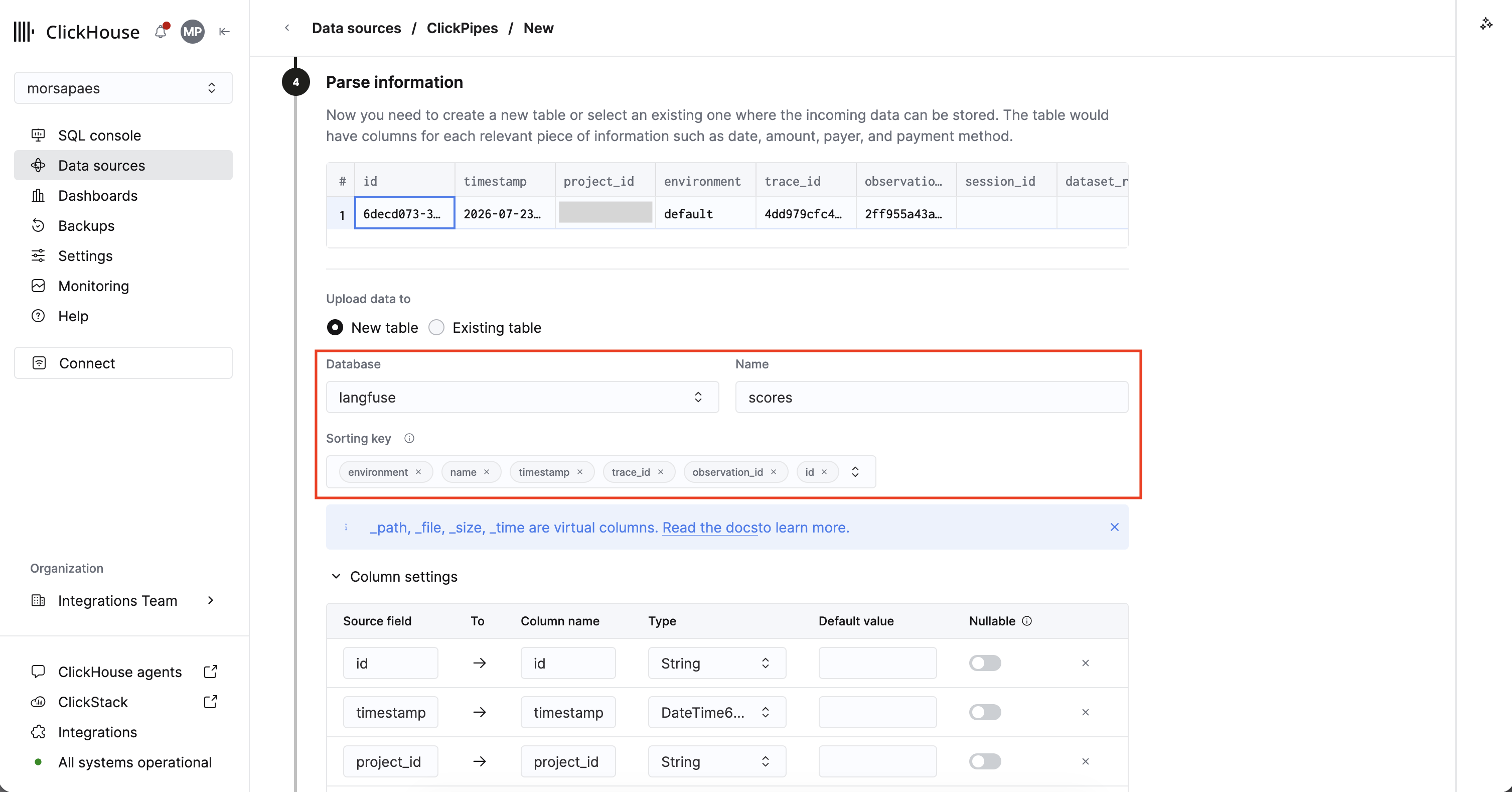 Under **Upload data to**, keep **New table** selected and set:
* **Database** and **Name**: a dedicated database for your Langfuse data (e.g., `langfuse`) and a human-readable name for the destination table (e.g., `scores`). ClickPipes defaults to the `default.s3-` to avoid naming collisions.
* **Sorting key**: the [ordering key](/best-practices/choosing-a-primary-key) of the destination table, which determines how ClickHouse persists the data on disk. For optimal performance, the sorting key should match your data access patterns so that queries can skip reading as much data as possible.
| Sub-directory | Destination table | Suggested sorting key |
| ------------------ | ----------------- | ------------------------------------------------------------ |
| `observations_v2/` | `observations_v2` | `environment, start_time, trace_id, id` |
| `scores/` | `scores` | `environment, name, timestamp, trace_id, observation_id, id` |
This key is also used for de-duplication in `ReplacingMergeTree` tables, so the set of columns must also uniquely identify a record. If you load **multiple Langfuse projects** into one table, prepend `project_id` to the sorting key. See the [reference documentation](/best-practices/choosing-a-primary-key) for guidance on choosing a sorting key.
* **Partition by**: leave blank unless you plan to expire old traces. [Partitioning](/best-practices/choosing-a-partitioning-key) in ClickHouse is used for data management, rather than query optimization; the suggested sorting key already prunes time-range queries. If you do need retention, partition by the time column (`toYYYYMM(start_time)`, or `toYYYYMM(timestamp)` for `scores`) so that expiring a month of traces is a single `DROP PARTITION` operation.
**2.** Next, expand **Advanced settings** and set the **Engine** to [`ReplacingMergeTree`](/engines/table-engines/mergetree-family/replacingmergetree) to ensure deduplication, using `updated_at` as the **Version** column.
Under **Upload data to**, keep **New table** selected and set:
* **Database** and **Name**: a dedicated database for your Langfuse data (e.g., `langfuse`) and a human-readable name for the destination table (e.g., `scores`). ClickPipes defaults to the `default.s3-` to avoid naming collisions.
* **Sorting key**: the [ordering key](/best-practices/choosing-a-primary-key) of the destination table, which determines how ClickHouse persists the data on disk. For optimal performance, the sorting key should match your data access patterns so that queries can skip reading as much data as possible.
| Sub-directory | Destination table | Suggested sorting key |
| ------------------ | ----------------- | ------------------------------------------------------------ |
| `observations_v2/` | `observations_v2` | `environment, start_time, trace_id, id` |
| `scores/` | `scores` | `environment, name, timestamp, trace_id, observation_id, id` |
This key is also used for de-duplication in `ReplacingMergeTree` tables, so the set of columns must also uniquely identify a record. If you load **multiple Langfuse projects** into one table, prepend `project_id` to the sorting key. See the [reference documentation](/best-practices/choosing-a-primary-key) for guidance on choosing a sorting key.
* **Partition by**: leave blank unless you plan to expire old traces. [Partitioning](/best-practices/choosing-a-partitioning-key) in ClickHouse is used for data management, rather than query optimization; the suggested sorting key already prunes time-range queries. If you do need retention, partition by the time column (`toYYYYMM(start_time)`, or `toYYYYMM(timestamp)` for `scores`) so that expiring a month of traces is a single `DROP PARTITION` operation.
**2.** Next, expand **Advanced settings** and set the **Engine** to [`ReplacingMergeTree`](/engines/table-engines/mergetree-family/replacingmergetree) to ensure deduplication, using `updated_at` as the **Version** column.
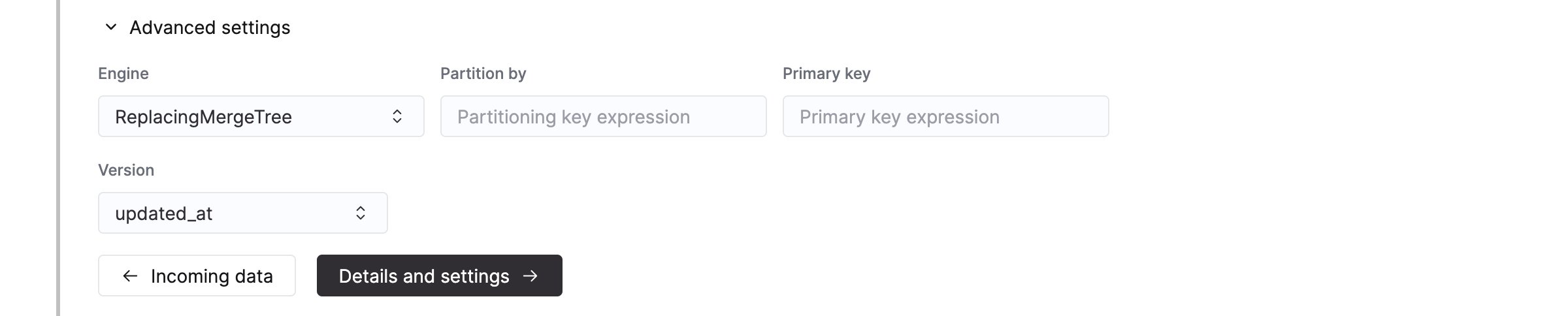 Export windows in the Langfuse Cloud Blob Storage integration are inclusive on both bounds, so the same record can land in more than one exported file. Unless your analytical query patterns are idempotent (e.g., `uniq()`, `max()`, `min()`), you **must** handle deduplication as part of the downstream data model using `ReplacingMergeTree` as the target engine.
**Deduplicate with ReplacingMergeTree**
This table engine collapses duplicates using background merges. For full de-duplication on read (i.e., merge-on-read semantics), you **must** use the `FINAL` modifier (or `argMax()`-style aggregations) at query time.
ClickPipes creates a dedicated user for writing data into the destination table. Select a role for this internal user using a custom role or one of the predefined roles:
* `Full access`: with full access to the cluster. Required if you use a materialized view or dictionary with the destination table.
* `Only destination table`: with `INSERT` permissions to the destination table only.
Export windows in the Langfuse Cloud Blob Storage integration are inclusive on both bounds, so the same record can land in more than one exported file. Unless your analytical query patterns are idempotent (e.g., `uniq()`, `max()`, `min()`), you **must** handle deduplication as part of the downstream data model using `ReplacingMergeTree` as the target engine.
**Deduplicate with ReplacingMergeTree**
This table engine collapses duplicates using background merges. For full de-duplication on read (i.e., merge-on-read semantics), you **must** use the `FINAL` modifier (or `argMax()`-style aggregations) at query time.
ClickPipes creates a dedicated user for writing data into the destination table. Select a role for this internal user using a custom role or one of the predefined roles:
* `Full access`: with full access to the cluster. Required if you use a materialized view or dictionary with the destination table.
* `Only destination table`: with `INSERT` permissions to the destination table only.
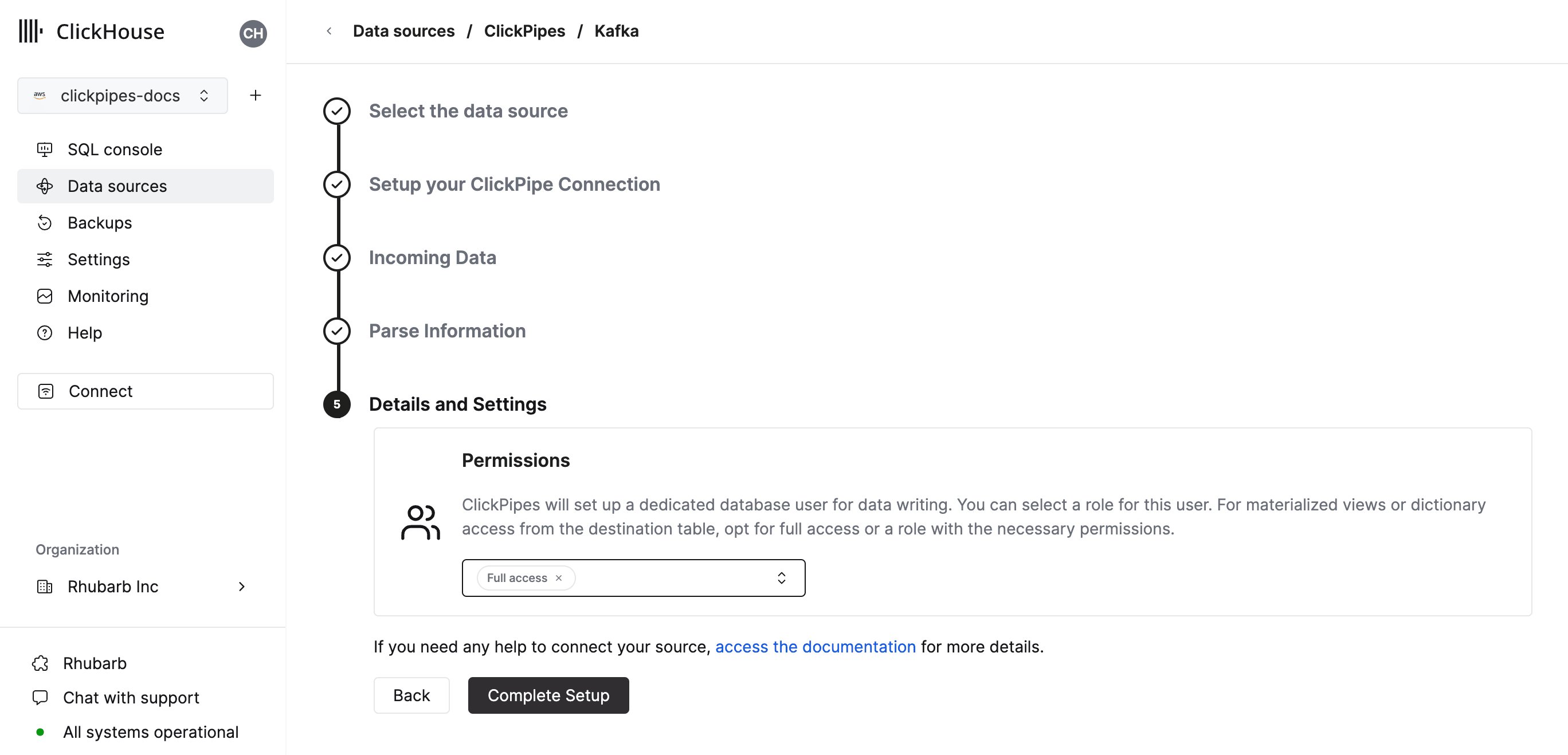 Click **Complete setup** to create the ClickPipe.
And you're all set! ClickPipes will first perform an historical backfill of all files in the specified path and then start ingesting new files as they land in the bucket.
Click **Complete setup** to create the ClickPipe.
And you're all set! ClickPipes will first perform an historical backfill of all files in the specified path and then start ingesting new files as they land in the bucket.
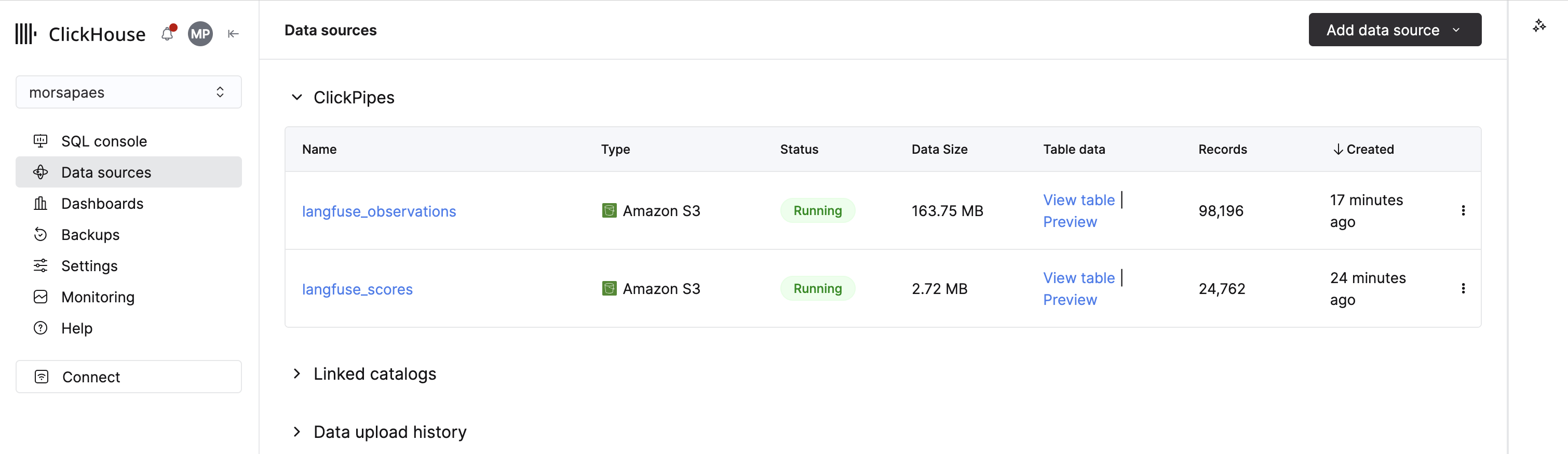 Repeat the steps in this guide for each sub-directory you want to import into ClickHouse Cloud.
Query trace data
Once the ClickPipes are up and running, you can query your Langfuse Cloud trace data directly in ClickHouse Cloud. The examples below cover some common query patterns: cost and latency rollups, reconstructing a single trace, and correlating scores with models and prompts.
Time-bucketed metric rollups
Some fields, like `usage_details` and `cost_details`, are exported as `Map` columns. Use a key lookup to read a single value (e.g., `sum(cost_details['total'])`).
```sql theme={null}
SELECT
toStartOfHour(start_time) AS t,
provided_model_name,
count() AS spans,
quantile(0.95)(latency) AS p95_latency,
sum(total_cost) AS cost,
sum(usage_details['total']) AS tokens
FROM observations_v2 FINAL
WHERE start_time >= now() - INTERVAL 7 DAY
-- AND environment = ''
GROUP BY t, provided_model_name
ORDER BY t;
```
Trace reconstruction
```sql theme={null}
SELECT *
FROM observations_v2 FINAL
WHERE trace_id = ''
ORDER BY start_time;
```
Quality analysis
```sql theme={null}
SELECT
o.provided_model_name,
s.name,
avg(s.value) AS avg_score
FROM "s3-26237f63-84dc-4a7d-a0e1-7361cf55ee0b" AS s FINAL
JOIN "s3-80899034-ce1e-4dc9-a4e6-b059ddec4175" AS o FINAL ON s.trace_id = o.trace_id
--WHERE s.environment = ''
GROUP BY o.provided_model_name, s.name
ORDER BY avg_score DESC;
```
See also
* [Langfuse and ClickHouse](/products/cloud/features/ai-ml/langfuse)
* [Langfuse Cloud Blob Storage export](https://langfuse.com/docs/api-and-data-platform/features/export-to-blob-storage)
* [ClickPipes for object storage](/integrations/clickpipes/object-storage/amazon-s3/overview)